

VDASH Guide
IHU Enginnering Mode - Change Region Settings on P3
How to change the infotainment system region after changing the vehicle region configuration in VDASH.
Sensus Connect region settings
Why this setting matters
After you have changed the region settings in car configuration, for example from the USA market to EU, you also need to change the region settings in the entertainment system.
If you do not do this, the entire infotainment system will be extremely slow and almost impossible to use.
Applicable vehicles
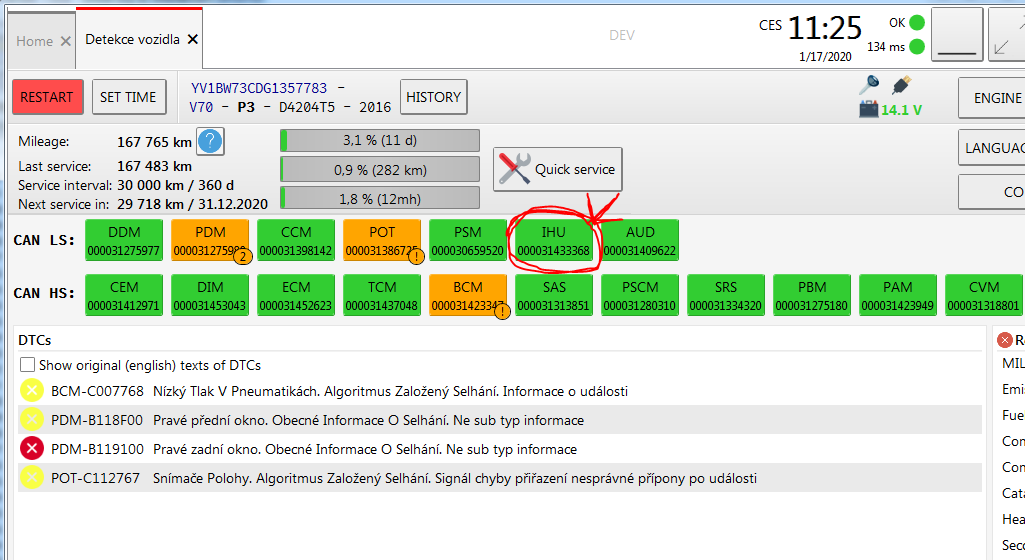
This tutorial is for Sensus Connect cars only. If your car has Sensus Connect, it is easy to confirm once the vehicle is connected to VDASH. You will find the IHU unit in the diagnostic network.
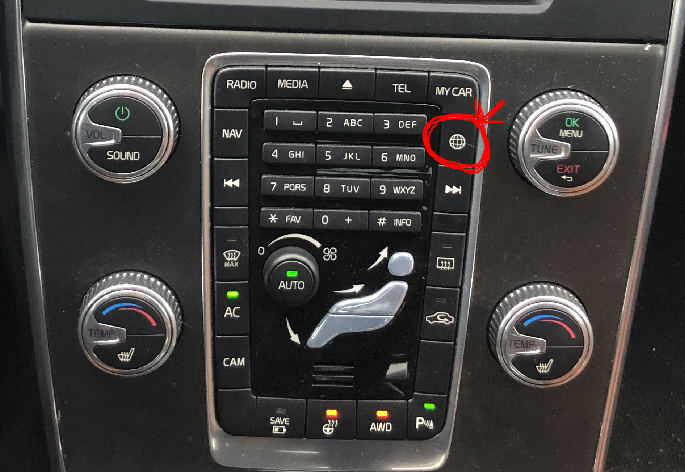
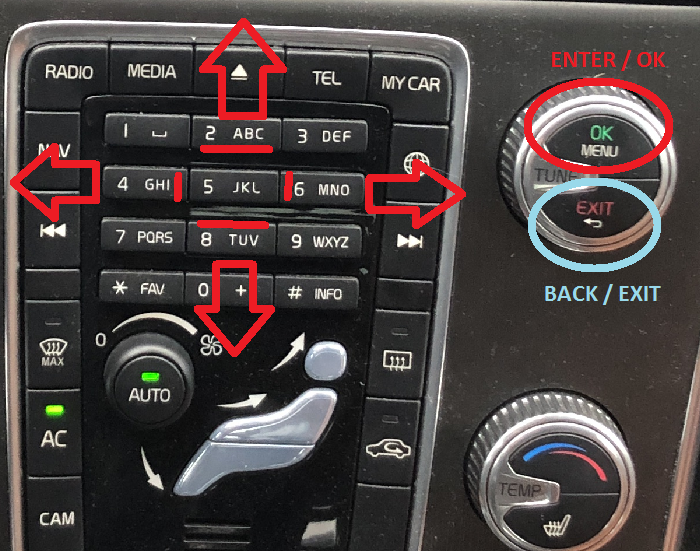
Sensus Connect cars usually have the globe key on the climate console, as shown below.
Open IHU Engineering Mode
Connect the vehicle to VDASH and open the IHU unit by clicking the IHU button.
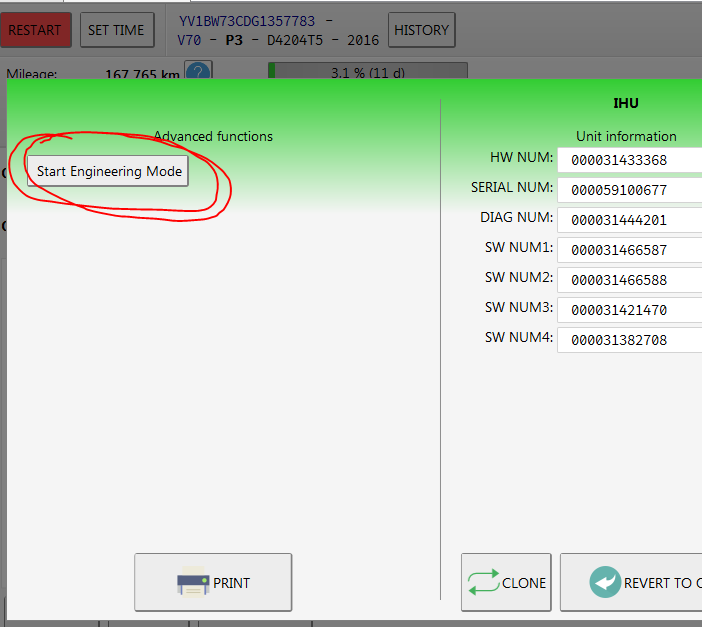
A window like this will appear. Click the Start Engineering Mode button. After approximately 10 seconds, the Engineering Mode menu will appear on the vehicle’s center screen.
You will then manage all settings using the vehicle’s climate console.
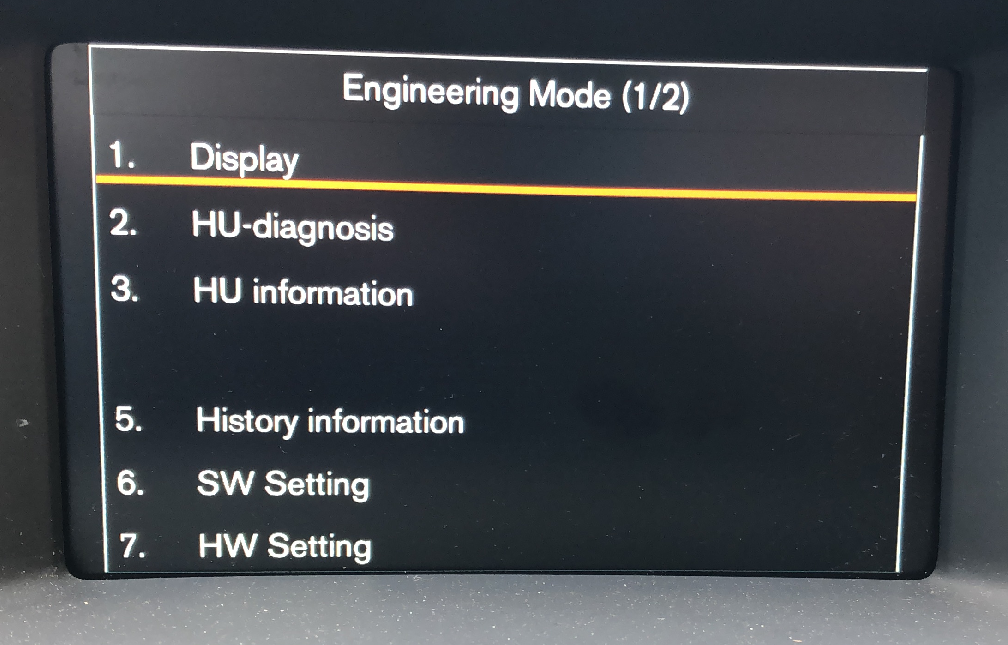
In this menu, use the 2, 6, 8, 4 and OK / EXIT buttons.
Change market and DVD settings
Go to menu 7 - HW settings by pressing the 8 button and confirm with OK.
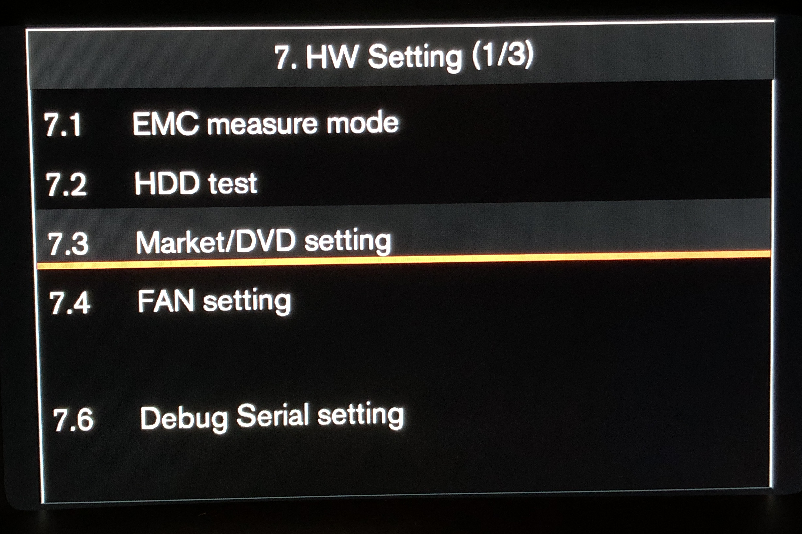
Then go to menu 7.3 - Market / DVD settings and press OK.
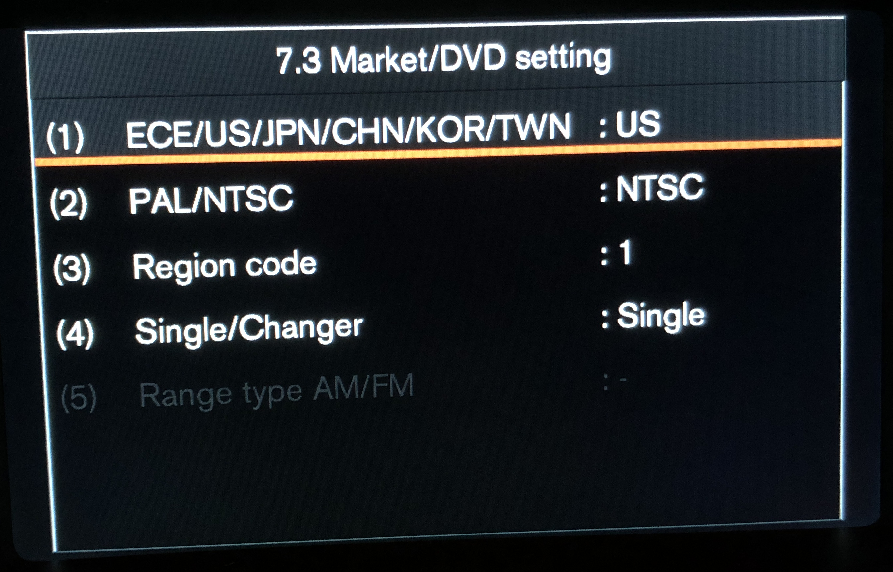
Here you can change the market location from US to EU, change NTSC to PAL, and change the DVD region code from 1 to 2.
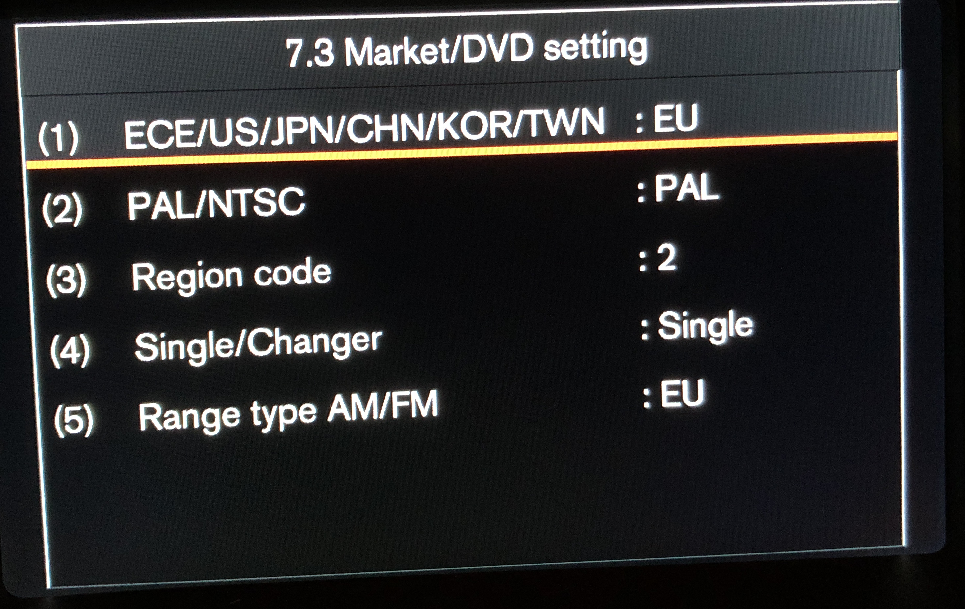
Allow different map data region
Once the market settings are changed, go back with the EXIT button. You will find yourself in menu 3.26.
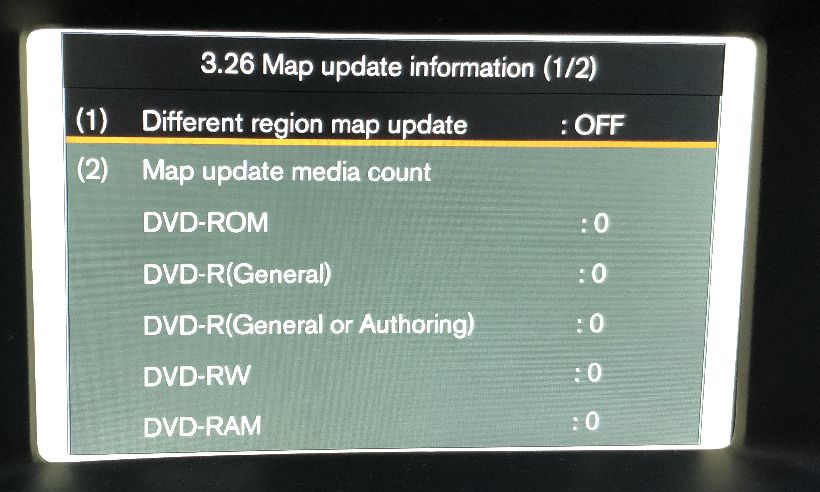
Here you activate the possibility to install map data from a different region.
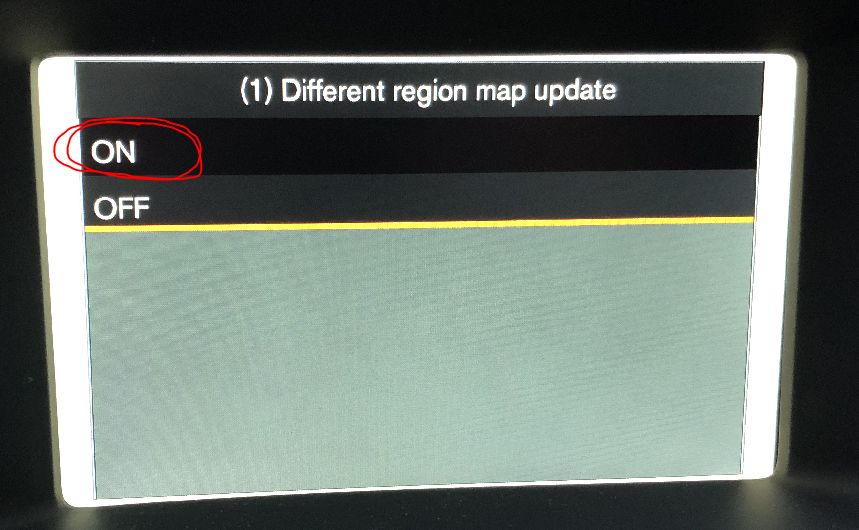
Reset the system
After this, go back to the main menu and open menu 9 - System reset.
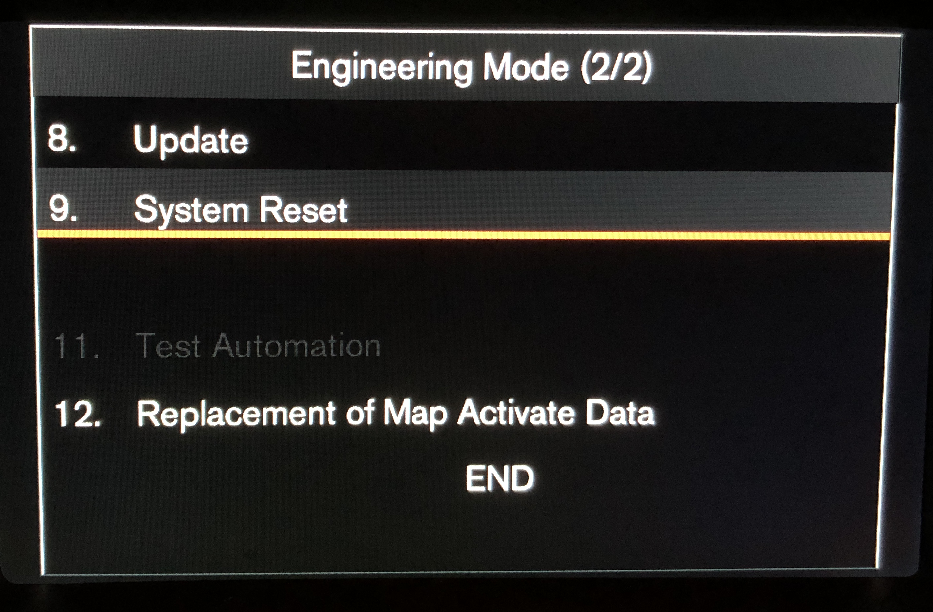
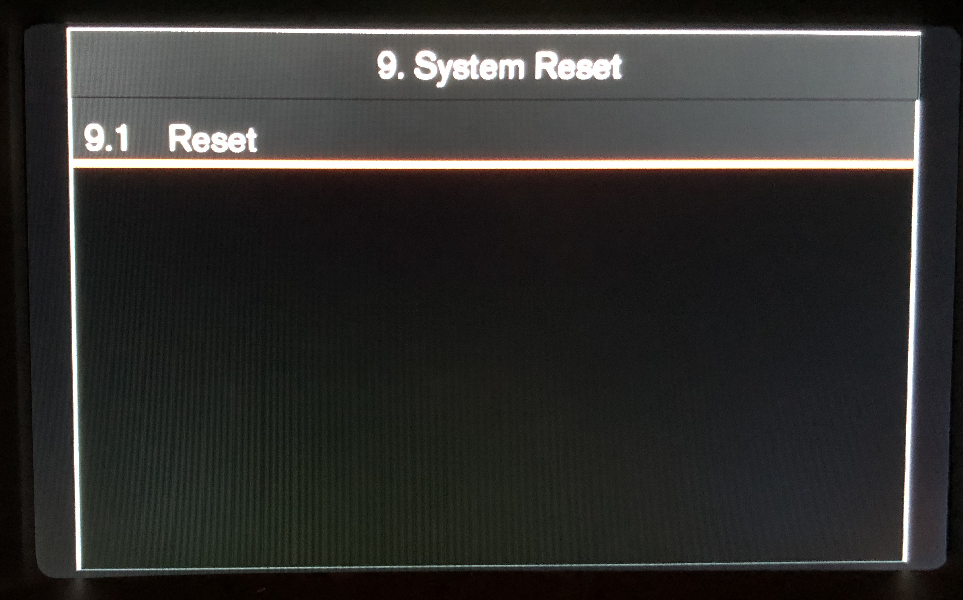
Confirm the system reset. This saves all settings and the system will reboot itself with the new configuration.
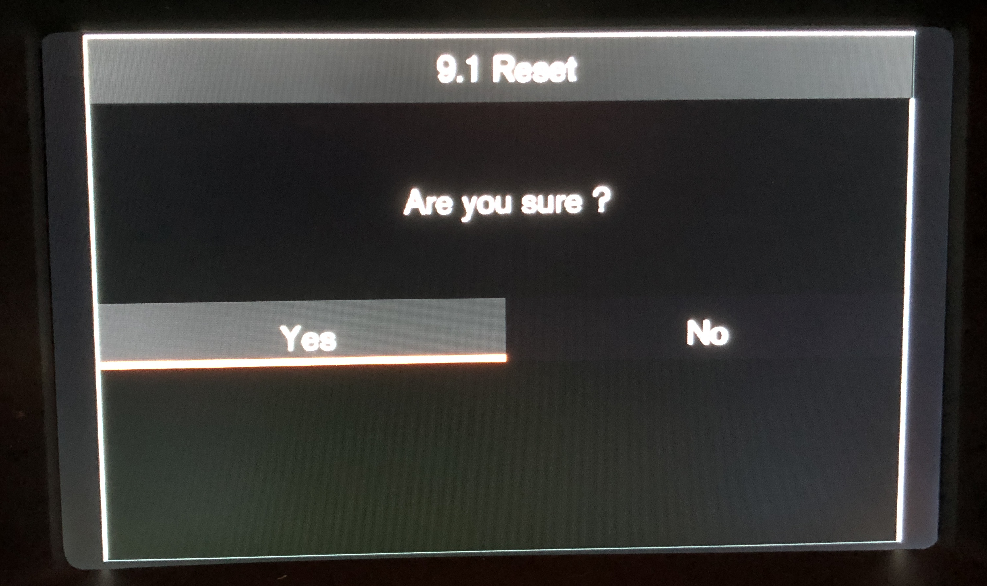
Important: Once you have completed all steps, lock the car for at least 5 minutes.
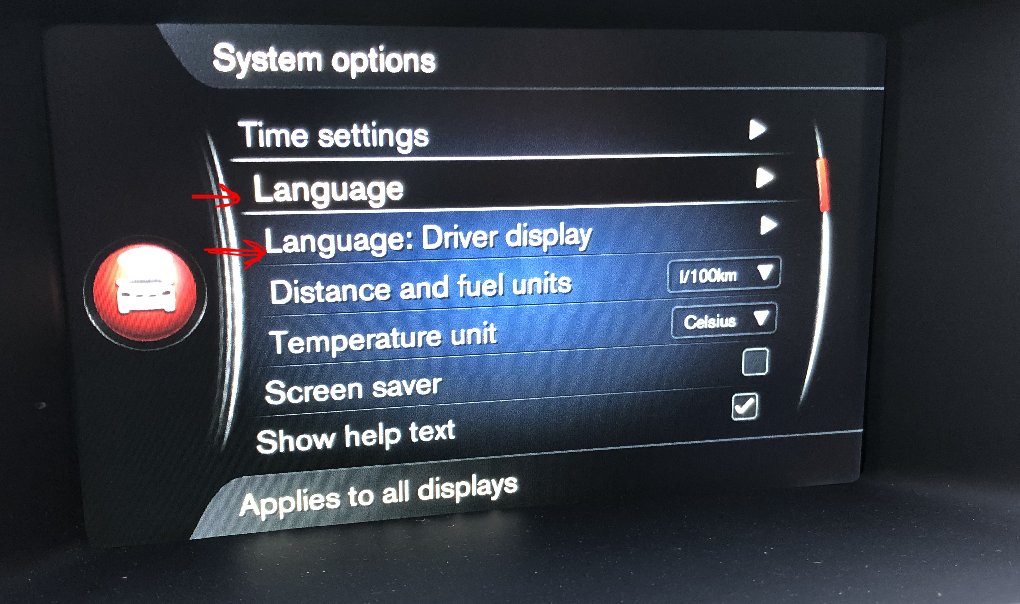
Set your local language
After this time has passed, you can set your local language using the central console menu, if the language is supported by Volvo. This can also apply to the DIM.
Related navigation information
For more information about navigation region, map data download, or navigation activation, see this article: https://d5t5.com/wiki/vdash/article-volvo-navigation-activation-sensus-connect